How To Hide Blue Ticks in WhatsApp Plus Easily (2026 Guide)
Learn how to hide blue ticks in WhatsApp Plus easily. Boost privacy, control read receipts, and improve your chat experience.
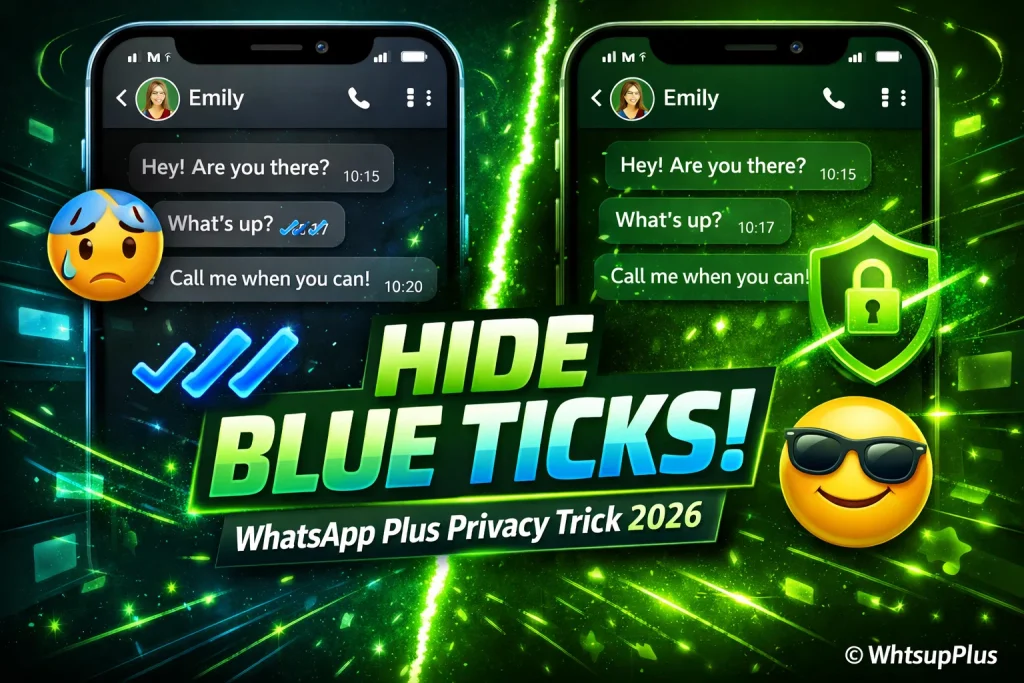
If you’ve ever felt annoyed when someone sees your message but you’re not ready to reply, the blue ticks in WhatsApp Plus APK can be a real privacy concern. Many users struggle with controlling their read receipts and maintaining personal space in conversations. In this guide, you’ll learn a simple and effective way to hide blue ticks in WhatsApp Plus without confusion. We’ll also cover privacy settings, step-by-step methods and useful tips so you can take full control of your messaging experience.
More Features:
What Are Blue Ticks in WhatsApp Plus?
Blue ticks in WhatsApp Plus are basically read receipts that show when someone has seen your message. When two blue check marks appear, it means the receiver has opened and read your chat, which helps improve communication clarity and reduces confusion in conversations. However, while this feature can be useful for tracking responses, it can also affect user privacy and chat experience, especially when someone doesn’t want to reply immediately but still appears “active.” That’s why many users look for ways to control or hide read receipt indicators for a more comfortable messaging experience.
Also See: Schedule Messages on WhatsApp Plus: Easy Guide
How To Hide Blue Ticks in WhatsApp Plus
If you want better control over your privacy settings, WhatsApp Plus makes it simple to manage read receipts and improve your overall chat experience. By following a few easy steps, you can quickly learn how to hide blue ticks in WhatsApp Plus without any technical difficulty.
Step 1: Open WhatsApp Plus Settings
- Open the WhatsApp Plus app on your phone
- Tap on the three-dot menu at the top right corner
- Select WhatsApp Plus Settings to access advanced options
Step 2: Go to Privacy Options
- Inside settings, look for the Privacy & Security section
- Tap on it to open detailed privacy controls
- This section allows you to manage your online activity visibility
Step 3: Disable Read Receipts
- Find the option labeled Read Receipts / Blue Ticks
- Toggle it off to hide blue ticks in chats
- This ensures others cannot see when you’ve read messages
Step 4: Save and Apply Changes
- Confirm your selected settings carefully
- Exit the menu to automatically apply changes
- Your WhatsApp Plus privacy settings are now updated successfully
Alternative Privacy Options in WhatsApp Plus
Apart from hiding blue ticks, WhatsApp Plus offers several powerful privacy features that help you control your visibility and improve your overall messaging security. These options give users more freedom to customize their chat experience according to personal needs.
- Hide Last Seen Status
- Hide Online Status
- Disable Typing Indicator
- Freeze Last Seen
- Hide Status View
- Anti-Delete Messages
Benefits of Hiding Blue Ticks
- Better Privacy Control
Helps you manage your read receipts so others can’t confirm when you’ve seen their messages - No Reply Pressure
Reduces stress in conversations by letting you read messages without feeling forced to respond immediately - Improved User Comfort
Enhances your overall chat experience by giving you more freedom and control - Discreet Messaging
Allows you to stay active while keeping your online interaction status private and less exposed
Conlusion
In conclusion, this blog explained how to hide blue ticks in WhatsApp Plus using simple steps and clear settings adjustments. We also explored key features, WhstApp Plus alternative options and the real benefits of managing read receipts for a smoother messaging experience. Overall, it helps users take better control of their chat privacy and online visibility without any technical confusion.
If you found this guide helpful, feel free to share your thoughts in the comments or ask questions if anything feels unclear. For further support or troubleshooting, you can always reach out to the support team for quick help and guidance.
For Guides See: